Website File
Downloader
A powerful, modern Windows desktop application for scanning websites and batch-downloading files. Built with .NET 10 and WPF for a fast, native experience.
Everything You Need to Download the Web
Scan any website, discover downloadable files, and batch-download them with powerful controls and smart deduplication.
Smart Website Scanning
Scans pages via HTTP or a full Playwright browser engine for JavaScript-rendered sites. Discovers links to files across paginated and nested pages.
Batch Downloading
Download hundreds of files concurrently with configurable parallelism (1–32 threads), request delays, and bandwidth throttling.
SHA-256 Deduplication
Content-based duplicate detection using SHA-256 hashes. Skips files you've already downloaded — even if filenames differ.
File Type Filtering
Toggle documents (PDF, DOC, XLS), images (JPG, PNG, SVG), videos (MP4, AVI), archives (ZIP, RAR, 7Z) independently. Plus regex URL filter.
Pause & Resume
Pause all active downloads and resume them later without losing progress. Cancel individual or all downloads at any time.
Download Scheduling
Schedule automatic downloads for specific days and times. The app will scan and download on the configured schedule.
Live Progress Tracking
Real-time speed (KB/s), ETA estimates, per-file progress bars, and aggregate statistics (completed, failed, skipped).
Dark & Light Themes
Toggle between dark and light themes with Ctrl+T. Your preference persists across sessions.
Google Drive Support
Download entire Google Drive folders recursively using service-account credentials or gdown fallback.
User Interface Tour
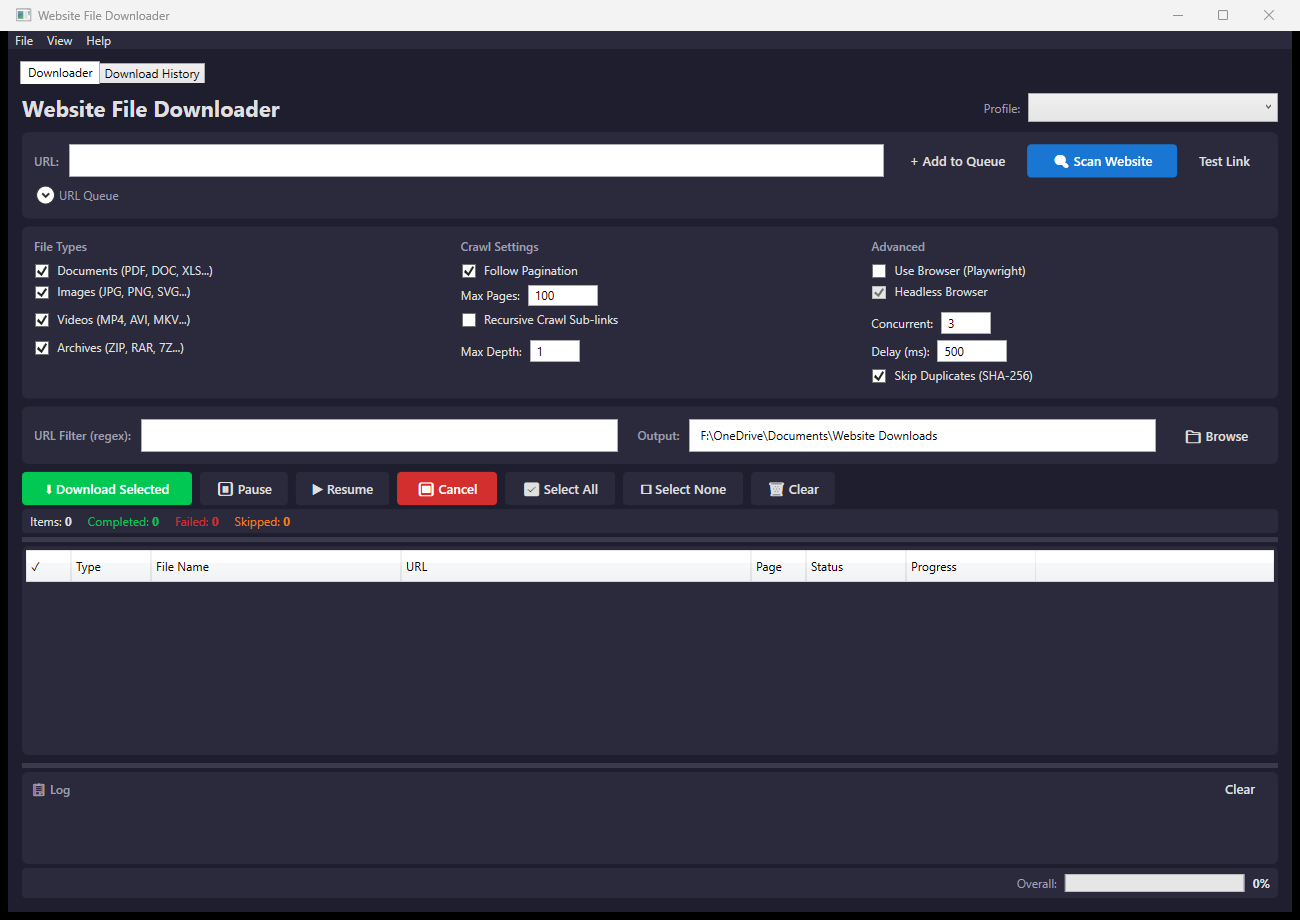
The main window is organized into clearly defined regions — all controls are visible without scrolling.
🅐 Menu Bar
File — Settings, Schedule, Open Folders, Exit
View — Theme, Skipped Files, Export Tree
Help — About, Updates, Report Issue
🅑 URL Input
Enter any URL with + Add to Queue, 🔍 Scan, and Test Link buttons. Supports drag-and-drop URL text files.
🅒 Options Panel
File type toggles, crawl depth, pagination, Playwright browser mode, concurrency slider, and request delay.
🅓 Action Buttons
Download Selected, Pause/Resume, Cancel, Select All/None, and Clear queue — all one click away.
🅔 Download Queue
Sortable grid with file type, filename, URL, status, and progress. Color-coded: green (done), blue (active), orange (paused), red (failed).
🅕 Log & Status
Timestamped log pane plus status bar with overall progress percentage and real-time speed.
Website Scanning
The scanner discovers downloadable file links on any web page with two powerful modes.
- HTTP Mode (default) — Uses HtmlAgilityPack to parse <a href> tags from page source. Fast and lightweight for static HTML pages and file directories.
- Browser Mode (Playwright) — Launches a real Chromium browser (headless or visible) to fully render JavaScript pages, SPAs, and CAPTCHA-protected sites.
- Follow Pagination — Detects
?page=N,/page/Npatterns automatically and crawls through all result pages up to the configured maximum. - Recursive Crawl — Follows discovered HTML links to a configurable depth, scanning each sub-page for additional files.
Deduplication & Controls
Intelligent download management ensures you never waste bandwidth on duplicate files.
- SHA-256 Hash Database — Hashes all existing files before downloading, then checks each new file. Duplicates are auto-skipped even across sessions.
- Concurrent Downloads — 1–32 parallel threads with per-file progress bars, global request delay, and speed limiting.
- Bandwidth Throttling — Set a speed limit (KB/s, 0 = unlimited) to control bandwidth usage. HTTP proxy support with authentication.
- Speed & ETA — Sliding-window speed tracker with real-time KB/s display and estimated time remaining.
- Download History — Dedicated tab showing URL, filename, size, hash, duration, and status for all downloads. Searchable and clearable.
Typical Workflow
Here's the standard flow for downloading files from a website — from URL to finished downloads.
- Enter a URL
Paste a website URL into the URL bar. Optionally select a profile from the dropdown to auto-configure settings.
- Configure Options
Choose file types, pagination, recursive crawling, concurrency, and whether to use the Playwright browser engine.
- Scan the Website
Click 🔍 Scan Website. The log pane shows progress as pages are scanned. Discovered files appear in the DataGrid.
- Review & Select
Review discovered files. Use Select All or manually check/uncheck individual files. Sort by clicking column headers.
- Choose Output Directory
Click 📁 Browse to pick where files should be saved. The path is remembered for next time.
- Download
Click ⬇ Download Selected. Watch progress in the DataGrid and summary bar. Use Pause/Resume as needed.
- Review Results
Check summary bar for completed/failed/skipped counts. Failed items can be retried via right-click.
Settings
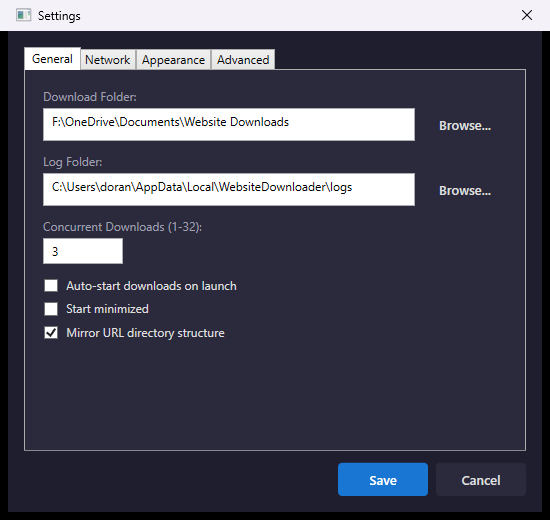
Open Settings from the File menu or press Ctrl+,. Four organized tabs cover every option.
⚙️ General
Download & log folders, concurrent threads, auto-start on launch, start minimized, mirror URL directory structure.
🌐 Network
HTTP proxy (with auth), speed limit in KB/s, and request delay (ms) to avoid rate limiting.
🎨 Appearance
Switch between Dark and Light themes. Your choice is saved and applied on next launch.
🔧 Advanced
Google Drive credentials, gdown fallback, SHA-256 skip toggle, export/import settings, restore defaults.
Download Scheduling
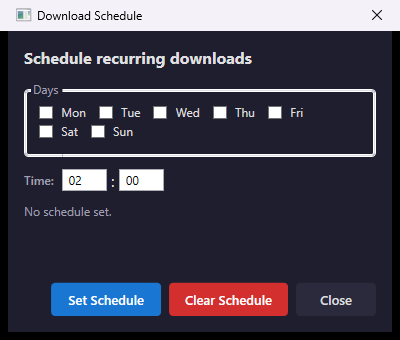
Schedule the app to automatically scan and download at specified times — perfect for regular content updates.
- Day & Time Selection — Pick one or more days of the week and set the time in 24-hour format.
- Auto Scan & Download — When the schedule triggers, the app takes the first queued URL, scans it, and downloads all discovered files.
- In-Process Timer — Uses an in-process timer (not Windows Task Scheduler), so leave the app running for schedules to work.
Dark & Light Themes
Switch between themes instantly. The app detects your OS theme on first launch and remembers your preference.
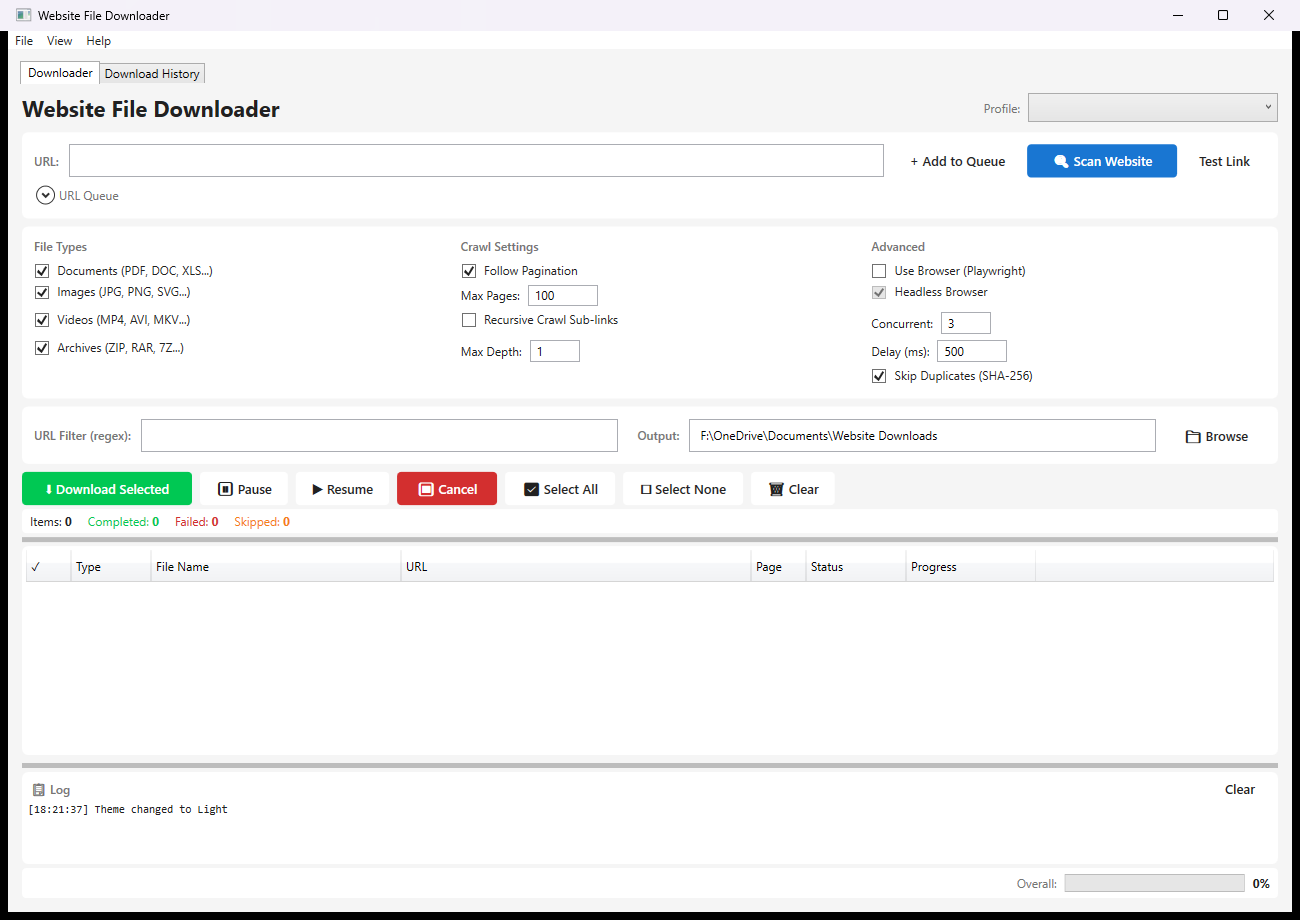
Toggle with Ctrl+T, View → Toggle Theme, or the Appearance settings tab.
Keyboard Shortcuts
Quick keyboard shortcuts for common operations.
| Shortcut | Action |
|---|---|
| Ctrl+T | Toggle dark/light theme |
| Ctrl+, | Open Settings |
| Ctrl+A | Select all files |
| Ctrl+D | Deselect all files |
| F5 | Start scan / refresh |
| Escape | Cancel current operation |
Technical Details
Built with modern technologies for performance, reliability, and clean architecture.
Platform
- .NET 10 / WPF
- Windows 10/11 (64-bit)
- Self-contained MSI installer
- No prerequisites required
Architecture
- MVVM with CommunityToolkit
- Core library (no UI dependencies)
- WPF XAML views & ViewModels
- Async relay commands
Scanning
- HtmlAgilityPack (HTTP mode)
- Playwright Chromium (Browser mode)
- Pagination auto-detection
- Recursive sub-link crawling
Data Storage
- JSON config at %LOCALAPPDATA%
- SHA-256 hash database
- Persistent URL queue state
- Structured activity & error logs
System Requirements
| Requirement | Details |
|---|---|
| Operating System | Windows 10 version 1903+ (x64) |
| Disk Space | ~700 MB (self-contained .NET runtime) |
| RAM | 512 MB min, 2 GB+ recommended |
| Prerequisites | None — everything bundled |
Frequently Asked Questions
Common questions about Website File Downloader.
The scan doesn't find any files. What's wrong?
How do I download from a site with multiple pages of results?
?page=2, /page/3, etc.) and follows them up to the configured max.Can I limit download speed?
The app says "Skipped (duplicate)". How does that work?
Where does the app store configuration and data?
%LOCALAPPDATA%\WebsiteDownloader\ — config.json, hashes.db, queue_state.json, and logs.Can I use a proxy server?
http://user:pass@host:port). Both scanning and downloading use the proxy.How do I download a Google Drive folder?
Can I download only specific file types like PDFs?
\.pdf$.What happens if a download fails?
How do I uninstall?
%LOCALAPPDATA%\WebsiteDownloader\.Ready to Download Smarter?
Get Website File Downloader free — scan any site, batch-download files, with zero hassle.